API Key Management
Create and manage domain-scoped API keys for OTel Collector authentication and external integrations.
Requires role: Admin
Related: Telemetry Pipeline, Identity Bridge, ITDR Detection, User Management & RBAC
Overview
API keys give machine processes — OpenTelemetry Collectors, SIEM platforms, and automation workflows — a way to authenticate to FidelID™ over standard HTTPS on port 443, without the mTLS certificate distribution that the Identity Bridge uses.
The primary use case is telemetry collection at scale. OTel Collectors need to run on every monitored endpoint (domain controllers, workstations, member servers) to capture the real logon types that power Tiered Fidelity™ Tier 3 (Validated) promotion. Deploying mTLS client certificates to hundreds or thousands of endpoints creates significant firewall and certificate management burden. A single domain-scoped API key eliminates that — every endpoint in a domain uses the same key.
Each key is tied to a specific Active Directory domain and carries one or more scopes that limit what it can do. FidelID™ supports 20 granular scopes covering telemetry, graph data, analysis, detection alerts, bridges, and administration — as well as three aggregate scopes (read, operator, admin) that expand to the appropriate set of granular scopes at key creation time. This makes it straightforward to create keys for common use cases without having to enumerate individual scopes.
IMPORTANT
API key management requires the Admin role. Operators and Viewers cannot create, list, or revoke keys.
Prerequisites
- You must be logged in with an Admin account.
- At least one Identity Bridge must be configured and have completed a full sync. The domain selector in the Create Key dialog is populated from your configured bridges.
- If you are deploying keys for OTel Collector telemetry, complete the Telemetry Pipeline setup first so you understand which domain to scope the key to.
The API Keys Page
Navigate to Admin > API Keys in the left sidebar. The page lists all active API keys across your domains.
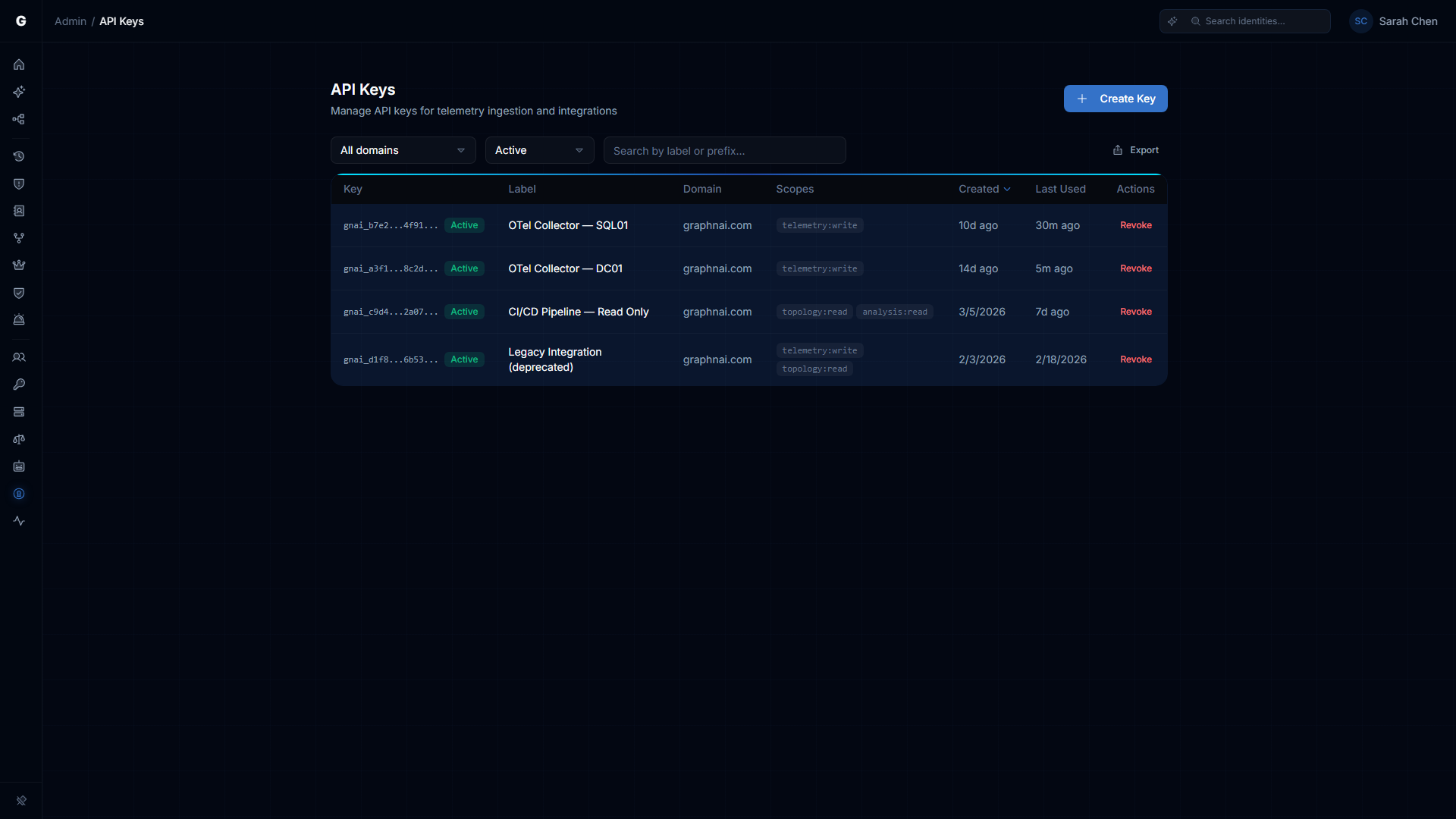
Each row in the table shows:
| Column | Description |
|---|---|
| Key | The first nine characters of the key (gnai_ prefix plus four hex characters), followed by .... This prefix is the only way to identify a key after creation. An Active or Revoked badge indicates the key's current status. |
| Label | The human-readable name you gave the key when creating it. |
| Domain | The Active Directory domain this key is scoped to. The key can only submit telemetry for this domain. |
| Scopes | The permissions granted to this key (e.g., telemetry:write). |
| Created | How long ago the key was created, with the creating admin's email visible on hover. |
| Last Used | The last time this key successfully authenticated a request. Updated at most once every five minutes. Shows Never for keys that have not been used. |
Use the Domain and Status dropdowns at the top to filter by domain or to show revoked keys alongside active ones. The search box filters by label or key prefix.
Creating an API Key
Requires role: Admin
- On the API Keys page, click Create Key in the top-right corner.
Fill in the three required fields:
Label — A descriptive name that identifies what this key is for. Use something that will be recognizable in six months, such as
DC Collectors - Corp DomainorSplunk SIEM Integration - HQ. Maximum 200 characters.Domain — The Active Directory domain this key is scoped to. If your bridges are configured, a dropdown will show your known domains. Otherwise, type the fully qualified domain name (e.g.,
corp.local). A key with domaincorp.localcan only submit telemetry events that declaregraphnai.domain: corp.local— mismatched domain events are rejected.Scopes — Select the permissions to grant. The scope picker shows all available granular scopes and the three aggregate convenience scopes (
read,operator,admin). When you select an aggregate, the dialog shows the list of granular scopes it will expand to, so you know exactly what access the key will carry. See the Scopes Reference section below for the full list and use-case guidance.
Click Create Key.
The dialog switches to a confirmation view showing the full key value.
WARNING
Copy the key now. The full key is shown exactly once and is never retrievable after you close this dialog. The platform stores only a cryptographic hash — if you lose the key, you must revoke it and create a new one.
Click Copy to clipboard to copy the key, then paste it into your password manager, secrets vault, or OTel Collector configuration.
Click I've saved this key to close the dialog.
The new key appears in the table immediately with an Active badge. The key prefix (e.g., gnai_a3f1...) is your reference for identifying it later.
Deploying with an OTel Collector
Once you have a key with the telemetry:write scope, configure your OTel Collector to authenticate using it.
Using the generated config (recommended)
The platform can generate a complete OTel Collector configuration file that includes the API key. Use the Download OTel Config button in the API Keys page for the key you just created. Provide the key value and your server's endpoint when prompted. The generated configuration file is ready to deploy — the exporter section uses an HTTP authorization header for authentication, targeting port 443 with no non-standard ports and no client certificates to distribute.
Adding to an existing OTel Collector config
If you already have an OTel Collector running on your endpoints, add the GraphnAI exporter to your existing config file. The generated pipeline uses distinct component names, so it runs alongside your existing pipelines without interfering with them.
See the Telemetry Pipeline guide for collector distribution recommendations and Windows audit policy requirements.
Domain validation
The API key is scoped to a specific domain. When telemetry arrives, the platform checks that the graphnai.domain resource attribute in the OTLP payload matches the key's domain. If they do not match, the request is rejected with HTTP 403. Make sure the resource processor in the generated config sets graphnai.domain to the correct value for the endpoints you are collecting from.
Revoking an API Key
Requires role: Admin
Revoke a key when a domain is decommissioned, a key is suspected compromised, or you need to rotate credentials.
- On the API Keys page, find the key to revoke. Use the label or key prefix (
gnai_xxxx...) to identify it. - Click Revoke in the Actions column for that row.
- A confirmation dialog appears, showing the key prefix and label.
- Click Revoke Key to confirm. The action cannot be undone.
The key is blocked immediately. Any OTel Collector or integration still using it will receive an HTTP 401 response on its next request. The key remains visible in the table with a Revoked badge when you enable the Status filter to show revoked keys.
NOTE
Revocation is permanent — revoked keys cannot be re-activated. If you revoked a key by mistake, create a new key and update your collectors with the new value.
Monitoring Key Usage
The Last Used column on the API Keys page shows when each key last successfully authenticated a request. The timestamp updates at most once every five minutes, so it reflects recent usage without generating excessive database writes.
Use this column to identify unused keys. A key that was created weeks ago and shows Never in Last Used may indicate a misconfigured collector that is not reaching the platform, or a key that was generated for an integration that was never completed.
To investigate a collector that appears not to be sending events:
- Check that the OTel Collector service is running on the endpoint.
- Verify the collector can reach the platform by checking the collector's own connection logs. An authentication error (HTTP 401) confirms the network path is open — the request reached the platform but was rejected at the auth layer, not the network layer.
- Check the collector's own logs for export errors. A
401 Unauthorizedresponse indicates the key may be wrong or revoked. A403 Forbiddenresponse indicates a domain mismatch between the key's domain and thegraphnai.domainresource attribute in the collector config.
Scopes Reference
Beta (current release)
| Scope | What it allows |
|---|---|
telemetry:write | Submit Windows Security Events to the OTLP ingest endpoint. Used by OTel Collectors on domain controllers and endpoints. |
Planned for MVP
The following scopes will be added in the MVP release to support SIEM integrations, compliance dashboards, and automation workflows. At Beta, specifying any of these in a Create Key request returns an invalid scope error.
| Scope | What it allows |
|---|---|
telemetry:read | Query telemetry pipeline statistics and stored events |
topology:read | Read the identity graph: nodes, edges, search |
analysis:read | Read risk posture, over-permission findings, staleness reports, attack paths |
detection:read | Read ITDR detection alerts |
detection:write | Update alert status (acknowledge, resolve, mark as false positive) |
bridges:read | List bridges, view sync history and metrics |
sync:trigger | Trigger or stop directory syncs |
agent:query | Submit queries to the Graphne conversational agent |
Convenience aggregates expand to their constituent granular scopes at key creation time. The stored key always contains the expanded list, never the aggregate name.
| Aggregate | Common use case |
|---|---|
read | SIEM export, compliance dashboards, read-only integrations |
operator | Automation workflows, pen test tooling |
admin | Full platform automation, multi-tenant management |
Security
Key format and storage
All API keys use the format gnai_ followed by 32 randomly generated hexadecimal characters (37 characters total). The random portion is generated using a cryptographically secure random source.
Only a SHA-256 hash of the key is stored in the database — the plaintext is computed, returned once in the creation response, and immediately discarded. This means:
- If a database backup is obtained by an unauthorized party, the raw key values cannot be recovered from it.
- There is no key retrieval mechanism. The key you copy at creation time is the only copy.
- Key comparison during authentication uses a constant-time algorithm to prevent timing-based attacks.
Domain scoping
A key can only authenticate telemetry submissions for the domain it was created for. When an OTel Collector submits events, the platform checks that the graphnai.domain resource attribute in the payload matches the key's domain. Events claiming a different domain are rejected with HTTP 403.
This design aligns with Active Directory trust boundaries: one key per domain, regardless of how many endpoints in that domain use it. A compromise of one domain's key does not affect other domains.
Key rotation procedure
To rotate a key without downtime:
- Create a new key for the same domain and scope.
- Update your OTel Collector configurations (or secrets vault entries) with the new key value. Deploy the updated config to your collectors.
- Wait until Last Used on the new key shows a recent timestamp, confirming collectors have picked it up.
- Revoke the old key.
Troubleshooting
OTel Collector returns 401 Unauthorized
Possible causes:
- The key value in the collector config is incorrect — check for truncation, extra whitespace, or missing characters.
- The key has been revoked. Check the API Keys page and confirm the key shows Active.
- The authorization header in the collector config is malformed. It must include the full key value with no extra characters.
Resolution: On the API Keys page, locate the key by its prefix and confirm it shows Active. If it shows Revoked, create a new key and update the collector config. If the key is Active, re-download the generated collector config from the API Keys page to ensure the header is formatted correctly.
OTel Collector returns 403 Forbidden
Cause: The graphnai.domain resource attribute in the OTLP payload does not match the domain the API key was created for.
Resolution: Check the resource processor section in your collector config and confirm the graphnai.domain value matches the domain shown on the API Keys page for this key. Domain matching is case-insensitive, but the value must be the fully qualified domain name (e.g., corp.local, not CORP or corp).
Last Used shows Never for an active key
Possible causes:
- The OTel Collector is not running or cannot reach the platform endpoint. Check the collector's connection logs for network errors.
- The collector config has the wrong endpoint URL or is still pointed at the mTLS endpoint on port 8443.
- The Windows audit policy is not generating events on the endpoints where the collector is installed. Without events to collect, the collector sends no data and makes no authenticated requests.
Resolution: Check the collector service status and its log output. Look for lines containing "error" in the exporter output. See the Telemetry Pipeline guide for steps to verify the full event flow from Windows audit policy through to graph edges.
A key was created but the full value was not saved
Because the platform never stores the plaintext key, there is no recovery path. Revoke the key and create a new one. Before creating future keys, prepare a destination for the secret — a password manager, HashiCorp Vault, Azure Key Vault, or AWS Secrets Manager — so it is ready to receive the value before you click Create Key.
Invalid scope error when creating a key
In Beta, only telemetry:write is a valid scope. Requests that include any other scope string — including planned MVP scopes such as topology:read — are rejected with an invalid scope error. Use only telemetry:write until the MVP scope model ships.
Related Documentation
- Telemetry Pipeline — Configure Windows audit policy, deploy OTel Collectors, and verify that events are reaching the graph
- Identity Bridge — The Identity Bridge uses mTLS authentication (not API keys) for directory sync
- ITDR Detection — Alerts generated from telemetry events submitted via API key authentication
- User Management & RBAC — How to grant or remove the Admin role required to manage API keys