Tier 0 Exposure
Track computers where Tier 0 credentials are actively at risk of extraction by lower-privileged identities holding credential-theft-level privileges on the same machine.
Requires role: Operator (viewing), Operator (Select Fire actions)
Related: Telemetry Enrichment, ITDR Detection, Identity Investigation Timeline, Select Fire, Asset Criticality, Risk Posture Dashboard, Graph Explorer, Identity Inventory
Overview
Tier 0 Exposure identifies a specific, high-priority attack scenario: a Tier 0 identity (Domain Admin, Enterprise Admin, or equivalent) is logged into a computer, and on that same computer a different, lower-privileged identity holds privileges that enable direct credential extraction — such as the ability to read process memory (LSASS dumping) or back up the SAM database.
This combination is dangerous because the lower-privileged identity does not need to attack the Tier 0 identity directly. It simply needs to read memory or perform a backup operation on the machine where the Tier 0 identity is currently logged in, and it obtains those credentials. This path to full domain compromise is invisible to directory-only tools: the lower-privileged identity may have no group memberships that look suspicious, but it holds runtime privileges that make credential theft trivial.
Each exposure point is a CRITICAL finding.
Tier 0 Exposure vs Tier 0 Staleness
These are two distinct metrics shown in different places:
| Metric | Where | What it measures |
|---|---|---|
| Tier 0 Staleness | Risk Posture Dashboard | Tier 0 identities that have not logged in recently — an administrative hygiene metric |
| Tier 0 Exposure | Analysis > Tier 0 Exposure (dedicated page) | Computers where a Tier 0 identity has an active confirmed session AND a non-Tier-0 identity holds credential-theft-level privileges on the same machine — an active attack surface metric |
Staleness is a hygiene concern. Exposure is an active risk.
Prerequisites
- Telemetry pipeline operational: Windows Event 4624 (successful logon) and Event 4672 (special privileges assigned) must both be collected. Session connections require 4624; privilege connections require 4672. See Telemetry Pipeline.
- Tier 0 identities assigned: Identities must have
Tier = 0set in Asset Criticality for the exposure calculation to evaluate them. See Asset Criticality. - Full sync completed: Both the directory sync (to establish identity nodes) and telemetry ingestion must be running.
- Operator role minimum: Viewing the Tier 0 Exposure page requires Operator role.
Navigating to the Tier 0 Exposure Page
- Navigate to Analysis > Tier 0 Exposure in the left sidebar
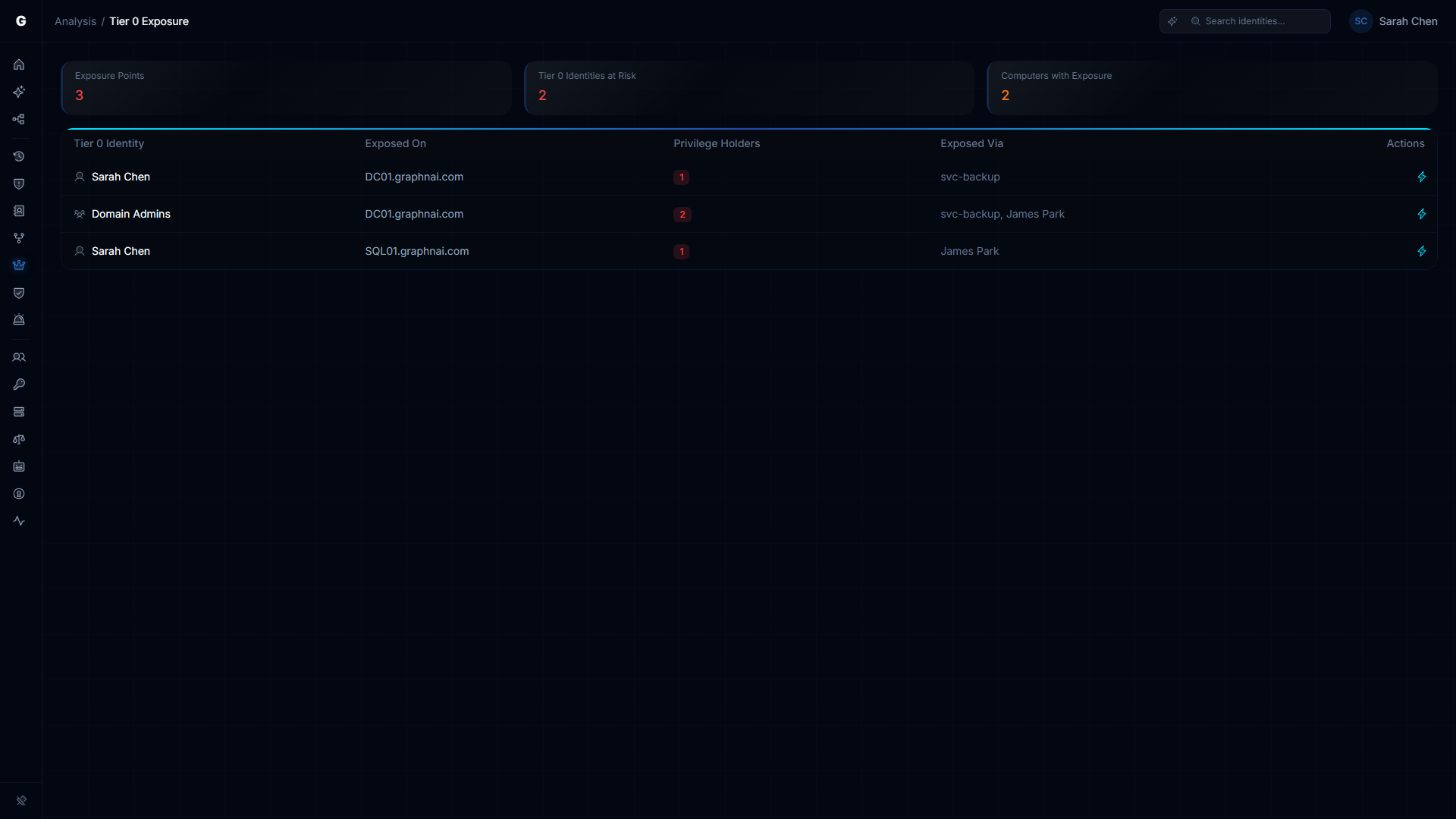
The page opens with three summary cards at the top:
| Card | What it counts |
|---|---|
| Exposure Points | Total count of at-risk computer/identity combinations currently active |
| Tier 0 Identities at Risk | Distinct count of Tier 0 identities that have a confirmed session on an exposed computer |
| Computers with Exposure | Distinct count of computers involved in at least one exposure point |
Below the summary cards, a table lists each exposure point.
Understanding the Exposure Table
Each row in the table represents one exposure point:
| Column | Description |
|---|---|
| Tier 0 Identity | The privileged identity whose credentials are at risk on this machine |
| Exposed On | The computer where the exposure occurs |
| Privilege Holders | Count of non-Tier-0 identities holding credential-theft-level privileges on that machine |
| Exposed Via | Names of the non-Tier-0 identities holding those privileges |
A single computer can appear in multiple rows if multiple Tier 0 identities are logged into it simultaneously.
Investigating an Exposure Point
- Click any row in the table
- The detail panel opens on the right, showing the Tier 0 identity's information, a blast radius visualization, and a credential exposure summary
- The summary lists each non-Tier-0 identity that holds critical privileges on the exposed computer
- Click any privilege holder name to navigate to that identity in the Graph Explorer — you can then investigate how the privilege holder acquired those runtime privileges
The detail flyout includes investigation navigation tabs that let you pivot between analysis views (Explore, Permissions, Membership, Junctions, Exposure, Alerts, Timeline) without leaving the page. An inline timeline can also be shown directly in the flyout.
To take action from the detail panel:
- Click Investigate to open the identity in the Graph Explorer with full graph context
- Click Select Fire (Operator role required) to initiate a privilege removal or session remediation workflow
- Use the per-row lightning icon in the table for quick Select Fire access on any finding
What Creates an Exposure Point
An exposure point appears when all three conditions are simultaneously true:
- A Tier 0 identity has a Tier 3 (Validated) session connection to a computer — meaning it authenticated without Restricted Admin Mode and its credentials were cached on the target machine
- A different, non-Tier-0 identity holds a privilege connection to the same computer with at least one Critical or High-risk Windows privilege
- That privilege connection is not a simulation
The exposure disappears automatically when any condition changes: the Tier 0 session connection expires (TTL-based), the non-Tier-0 identity's privilege connection expires, or the non-Tier-0 identity is promoted to Tier 0.
Restricted Admin Mode reduces (but does not eliminate) exposure
If the Tier 0 identity authenticated using Restricted Admin Mode (RDP with /restrictedadmin), their credentials are not cached in the target machine's memory. This reduces the exposure but does not eliminate it — Restricted Admin sessions carry Tier 2 fidelity rather than Tier 3, and they do not appear in the exposure table. However, a single non-restricted logon (Tier 3) from the same identity to the same machine does create an exposure point.
Privilege risk classification
The platform classifies Windows privileges into four risk tiers. Only Critical and High privileges create exposure points:
| Risk tier | Privileges | Why it matters |
|---|---|---|
| Critical | SeDebugPrivilege, SeImpersonatePrivilege, SeAssignPrimaryTokenPrivilege, SeTcbPrivilege, SeCreateTokenPrivilege | Enables direct credential extraction (LSASS memory read, token theft) or creation of arbitrary security tokens |
| High | SeBackupPrivilege, SeRestorePrivilege, SeTakeOwnershipPrivilege, SeLoadDriverPrivilege, SeEnableDelegationPrivilege, SeManageVolumePrivilege | Enables privilege escalation, indirect credential access (SAM/NTDS.dit extraction), or kernel driver loading |
| Medium | SeSecurityPrivilege, SeAuditPrivilege, SeSystemEnvironmentPrivilege, SeTrustedCredManAccessPrivilege, SeSyncAgentPrivilege | Enables evidence destruction or stored credential harvesting — visible in graph but does not create exposure points |
| Low | All other privileges | Minimal attack surface on their own |
Remediation Workflow
To eliminate an exposure point:
Option 1: Remove the Tier 0 session
If the Tier 0 identity logged into a workstation unnecessarily (e.g., a Domain Admin using their privileged account on a standard workstation), use Select Fire to revoke the access path and advise logging on with a lower-privileged account for workstation use.
Option 2: Remove the privilege holder's privileges
If the non-Tier-0 identity has no legitimate reason to hold Critical or High privileges on that computer (e.g., SeDebugPrivilege granted by local security policy without a business reason), use Select Fire to initiate the removal.
Option 3: Enforce Restricted Admin Mode for Tier 0 sessions
Tier 0 identities that must access certain computers should use Restricted Admin Mode (mstsc /restrictedadmin). This downgrades the session to Tier 2, preventing credential caching and removing the exposure point.
To launch Select Fire from the exposure table:
- Click the row for the exposure point you want to address
- In the detail panel, click Select Fire
- In the Select Fire modal, confirm the subject, target, and operation
- Complete the simulation and decision steps
See Select Fire for a full walkthrough.
Troubleshooting
Tier 0 Exposure page shows no results despite active Tier 0 sessions
Cause: Either the Tier 0 sessions are using Restricted Admin Mode (Tier 2, not Tier 3) or no non-Tier-0 identities hold Critical/High privilege connections on the same computers.
Solution:
- Navigate to Graph Explorer, search for a known Tier 0 identity (e.g., a Domain Admin), and check whether it has session connections. If connections exist, click one and confirm it shows Tier 3 fidelity in the detail panel (not Tier 2).
- If sessions show Tier 2, those are Restricted Admin Mode sessions — this is the correct, more secure configuration and correctly produces no exposure points.
- Confirm that Windows Event 4672 is being collected from your domain controllers. Without privilege events, the platform cannot create privilege connections, and the exposure condition cannot be evaluated. Run
auditpol /get /category:"Logon/Logoff"on a domain controller and verify that Audit Special Logon is enabled for Success. See Telemetry Pipeline.
Session connections appear but privilege connections are missing
Cause: Event 4672 (Special Privileges Assigned to New Logon) is not being collected, or the identities generating privilege events cannot be matched to graph nodes.
Solution:
- Verify that Logon/Logoff > Audit Special Logon is enabled in your audit policy with Success setting.
- Privilege connections are only created for identities that can be matched to existing graph nodes. Local accounts that are not in your directory will not resolve and will not create connections.
- Confirm that the domain name in the telemetry event matches the identity node's domain (FQDN format). A mismatch prevents correlation.
An exposure point disappeared between page loads
Cause: Exposure points are live computations. If the Tier 0 identity's session connection has expired (connections expire based on the telemetry TTL), or the privilege holder's privilege connection has expired, the exposure point is automatically removed.
Solution: This is expected behavior. Session and privilege connections expire to reflect current state. If you need to investigate a historical exposure, use the Identity Investigation Timeline for the Tier 0 identity, which retains session history for 270 days.
The same computer appears multiple times in the table
Cause: Multiple Tier 0 identities are simultaneously logged into that computer.
Solution: This is expected — one row per Tier 0-identity/computer combination. Each row represents a distinct credential that is at risk. Review each row separately: each Tier 0 identity may have a different remediation path.