Multi-Agent Intelligence Service
Ask natural language questions about your identity graph, get quantified risk scores, and receive least-privilege provisioning recommendations — all powered by a coordinated team of specialized AI agents.
Requires role: Operator (queries and risk analysis); Admin (provisioning and remediation)
Related: Select Fire™ | Over-Permission Analytics | Risk Posture Dashboard | Asset Criticality | Graph Explorer | Identity Inventory
Overview
The Multi-Agent Intelligence Service provides a coordinated team of specialized agents. Instead of routing every question to one general-purpose model, the platform classifies your intent and dispatches it to whichever agent is best suited for the task:
- Query Agent — Translates natural language questions into graph queries and returns structured results. Ask it anything about your identities, permissions, or access paths without learning a query language.
- Analysis Agent — Computes the Operational Safety Metric™ (OSM): a deterministic, multi-factor risk score that quantifies the blast radius of a proposed change before it is executed.
- Provisioning Agent — Finds the safest way to grant access by generating multiple candidate paths, simulating each one, scoring them with the OSM, and recommending the path with the minimal privilege footprint.
- Remediation Agent — Generates risk analysis and PowerShell remediation scripts within the Select Fire workflow. Also participates in compound workflows (e.g., "analyze the risk, then generate a script").
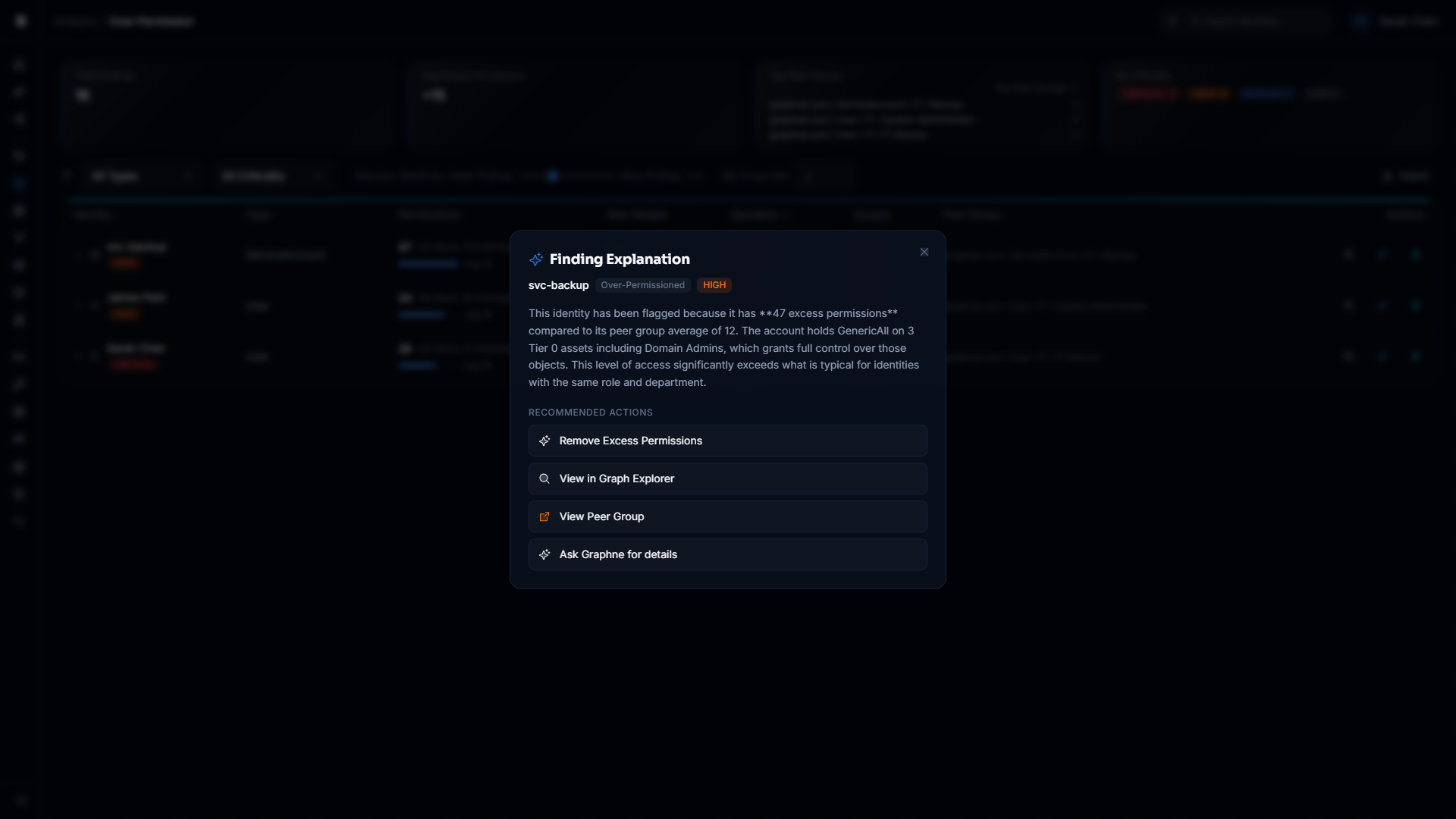
The Orchestrator also provides Finding Explanations — click the sparkle icon on any analysis finding to get a plain-English explanation of why an identity was flagged, along with recommended next steps.
Every response includes a visible reasoning trace that shows which agent ran, what data it used, and what it concluded. This supports the audit and explainability requirements common in regulated environments.
All agents are read-only by design. They query the identity graph but never modify it. Any change that an agent recommends flows through the Select Fire™ gateway, where you review the plan and choose how to execute it.
Prerequisites
- Role: Operator or Admin. Viewer accounts cannot access the Graphne panel.
- AI provider configured: An administrator must configure at least one AI provider before any agent can function. See AI Provider Configuration below.
- Identity data synced: At least one successful sync from an LDAP bridge or Entra ID source must be complete so the agents have graph data to reason over.
- Analytics pipeline run: The Operational Safety Metric™ relies on peer group statistics computed by the analytics pipeline after each full sync. OSM scores are available after the first full sync completes.
AI Provider Configuration
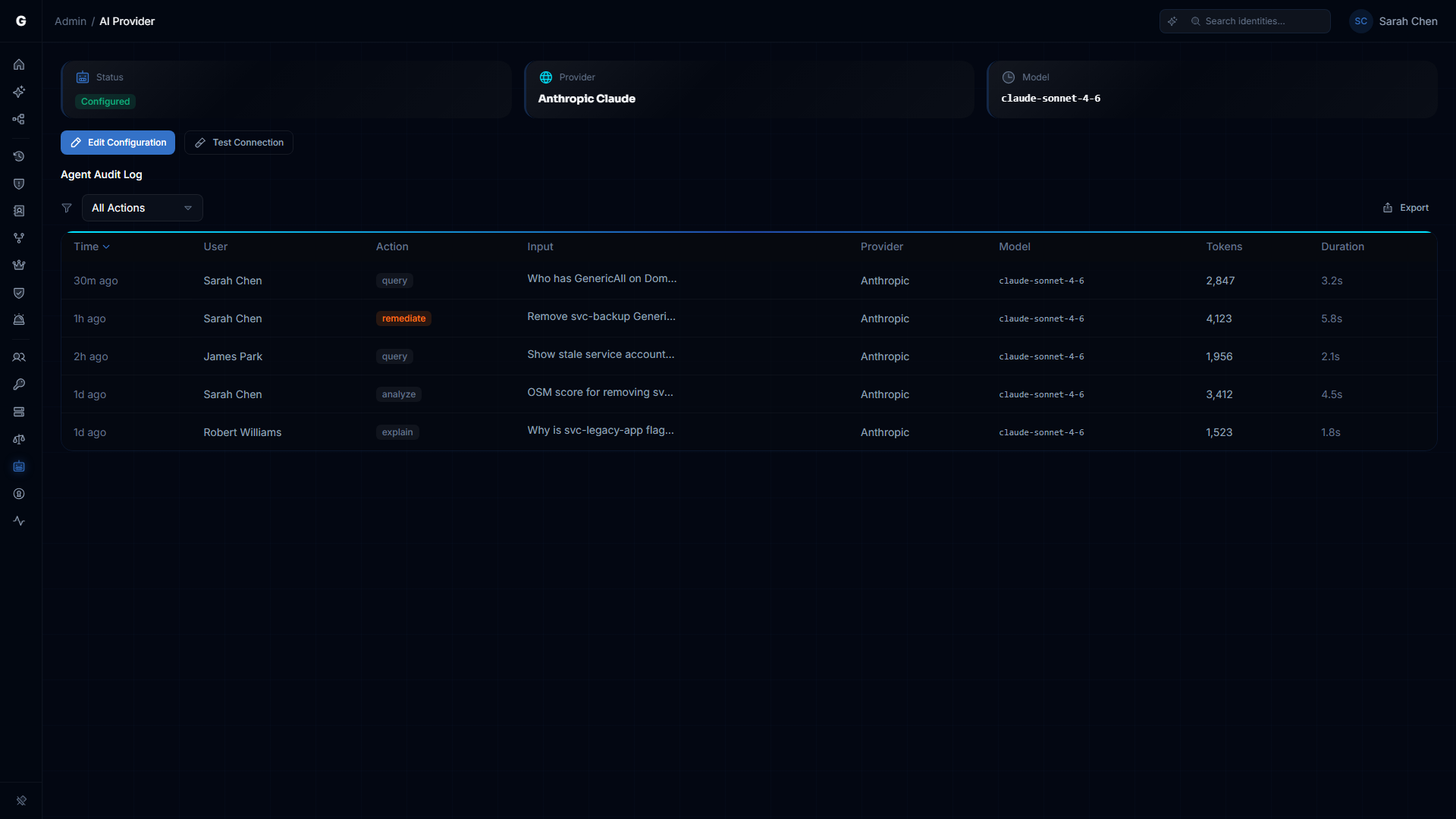
The multi-agent service uses a Bring Your Own Key (BYOK) model. You supply API credentials for your chosen LLM provider; the platform never ships its own keys. Configuration is stored encrypted in the database and can be changed at runtime through the Admin Settings UI — no container restart required.
Supported Providers
| Provider | API Key Required | Recommended Model |
|---|---|---|
| OpenAI | Yes | gpt-4o |
| Google Gemini | Yes | gemini-2.5-pro |
| Anthropic Claude | Yes | claude-sonnet-4-5 |
| Local (LM Studio / Ollama) | No | Customer choice |
All cloud providers default to Zero Data Retention (ZDR) configurations — prompts are not used for training.
The local option connects to any OpenAI-compatible API endpoint (LM Studio, Ollama, vLLM). It is the appropriate choice for air-gapped environments. No API key is required.
Configuring via Admin UI
- Log in with an Admin account.
- Navigate to Settings > AI Provider in the sidebar.
- Select your provider, enter the model identifier, and paste your API key.
- For local providers, enter the base URL pointing to your local LLM server.
- Click Test Connection to validate the key before saving. The platform sends a minimal test prompt and confirms the provider responds correctly.
- Click Save. The new configuration takes effect immediately for all subsequent agent queries.
API Key Security
API keys are encrypted at rest using AES-256-GCM. The key is decrypted only at time of use by the platform's trusted execution layer. Keys are never:
- Passed to agents or visible in agent context
- Included in audit log entries
- Logged at any severity level
- Returned to the browser in readable form
Natural Language Queries
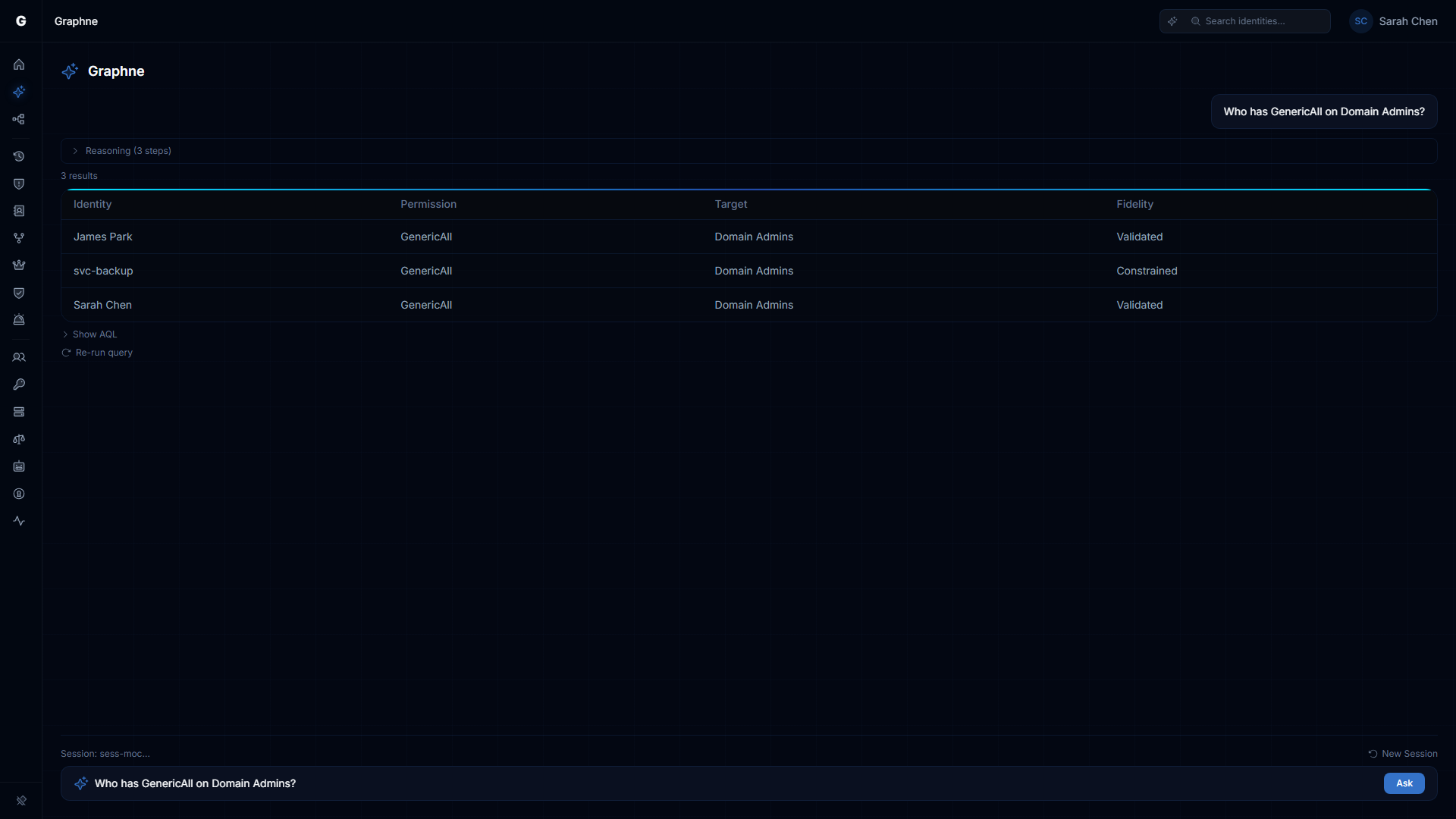
The Query Agent accepts plain English questions about your identity graph and returns structured results — tables, metrics, lists, or graph visualizations — depending on the result shape.
Using the Graphne Panel
- Navigate to Graphne in the sidebar (Operator or Admin role required; the AI agent must be enabled).
- Type your question in the input box.
- Click Ask or press Enter.
The panel shows real-time reasoning steps as agents work. Results appear when the agent completes, with clickable suggestion chips for follow-up questions. Conversations persist within the browser session — use the New Session button to start fresh.
Example Questions
Finding over-permissioned identities:
- "Show me all users with GenericAll permissions to Domain Admins"
- "List service accounts with more than 50 permissions"
- "Which users have WriteDacl on the Domain object?"
Exploring access paths:
- "How many paths exist from external groups to Tier 0 assets?"
- "Show me all paths from Bob to Domain Admins"
Counting and metrics:
- "How many stale service accounts are in the Finance OU?"
- "How many identities are over-permissioned compared to their peers?"
Compound investigations:
- "Find the most over-permissioned user in IT and generate a script to remove their excess access"
- "Analyze the risk of removing Alice from the Database Admins group, then generate a fix"
How Results Are Displayed
The Query Agent selects an appropriate display format based on what the data looks like:
| Format | When used | What you see |
|---|---|---|
| Table | Multiple rows with named fields | Sortable data grid with clickable identity names |
| Graph | Node and edge data | Cytoscape visualization of the returned subgraph |
| Metric | A single count or score | Large number with label and context |
| List | A simple set of names or IDs | Bullet list with links to graph view |
| Script | Generated PowerShell or shell code | Scrollable code block with copy and download buttons |
Follow-Up Questions and Session Continuity
When you submit a follow-up question, the agent uses the context from earlier in the session. For example:
- "Show me all users with GenericAll to Domain Admins" → returns a table of users
- "Now filter that to just the Finance department" → the agent applies the filter to the previous result
- "Generate a remediation script for the first one" → the agent uses the specific user from the previous result
Session context is maintained for up to 30 minutes of inactivity. Each session stores up to 50 queries.
Finding Explanations
The Finding Explanations feature provides one-click AI explanations for any security finding surfaced by the platform's analysis engines. Instead of interpreting raw data yourself, click the sparkle button on any finding row to receive a plain-English explanation of why the identity was flagged and what to do about it.
Where to Access
Sparkle buttons appear on finding rows across analysis pages:
- Stale Identities — Each stale identity row
- Over-Permission Analytics — Each over-permissioned identity row
- Critical Junctions — Each junction node row
- Detection Alerts — Each alert row
- Identity Inventory — Each identity row
On the Risk Posture Dashboard, click the finding detail text in the Top Findings table to trigger an explanation (the sparkle button is not shown on the dashboard).
What the Response Includes
Each explanation response contains:
- Plain-English explanation — Why this identity was flagged, what data drove the finding, and how it compares to its peers.
- Recommended actions — Interactive buttons that route you to the appropriate next step:
| Action Type | Button Label | What It Does |
|---|---|---|
select_fire | "Remediate with Select Fire" | Opens Select Fire™ to remediate the finding |
investigate | "Investigate in Graph Explorer" | Opens the identity in the Graph Explorer for manual inspection |
navigate | "View Peer Group" (or similar) | Navigates to the relevant analysis page |
ask_graphne | "Ask Graphne for details" | Pre-fills a follow-up question in the Graphne NLP panel |
How It Works
Finding Explanations use the Orchestrator's Explain function, which bypasses the intent classification pipeline entirely. The Orchestrator sends the finding context directly to the configured AI provider and returns a structured explanation. This makes explanations fast — typically under 2 seconds — because they skip the multi-agent dispatch overhead.
Role Requirements
Requesting a finding explanation requires the Operator or Admin role. Viewer accounts do not see sparkle buttons on finding rows.
Operational Safety Metric
The Operational Safety Metric™ (OSM) is a deterministic, 0-to-100 risk score that quantifies the impact of a proposed access change before it is executed. Unlike opaque ML-generated scores, the OSM is computed from six weighted factors, all grounded in actual graph data.
Understanding the Score
A higher OSM score means higher risk. The score maps to a letter grade and a Select Fire™ mode recommendation:
| Score Range | Grade | Select Fire™ Mode | Meaning |
|---|---|---|---|
| 0 – 20 | A | Full-Auto eligible | Low impact — safe to automate if policy permits |
| 21 – 40 | B | Semi-Auto | Moderate impact — requires explicit approval |
| 41 – 60 | C | Semi-Auto | Elevated impact — requires approval with review |
| 61 – 80 | D | Safe Mode only | High impact — manual script review required |
| 81 – 100 | F | Safe Mode only | Critical impact — manual review, senior approval recommended |
Any change involving a Tier 0 asset is automatically floored at a score of 70 (grade D, Safe Mode), regardless of other factors.
OSM Factors
The score is computed from six factors, each normalized to a 0-to-1 scale before weighting:
| Factor | What it measures |
|---|---|
| Target Criticality | The criticality tier of the target identity (Tier 0 = highest risk) |
| Blast Radius | Number of downstream identities reachable from the target |
| Severity Weight | The severity of the permission edge being changed |
| Peer Deviation | How far the subject deviates from its peer group's permission baseline |
| Fidelity Tier | Evidence quality of the access relationship (Theoretical, Constrained, Validated) |
| Dependencies | Number of active sessions and services that depend on the target |
The Factor Breakdown section in the response expands each factor's raw value, normalized value, weight, and weighted contribution. This lets you see exactly why a score is high and which factor to address to reduce risk.
Triggering a Risk Analysis
Ask the Analysis Agent directly:
- "What is the risk score for removing Bob from Domain Admins?"
- "Analyze the operational safety of removing Alice's WriteDacl on the HR-Share"
- "What's the blast radius of disabling the svc-backup service account?"
The agent will return the OSM score, grade, Select Fire mode recommendation, and factor breakdown.
You can also trigger OSM as part of a compound query: "Analyze the risk, then generate a remediation script" causes the Orchestrator to run the Analysis Agent followed by the Remediation Agent, with the OSM included alongside the script.
Customizing OSM Weights
Factor weights are configurable by your administrator. For networks where blast radius is less meaningful (small flat networks), reducing that weight and increasing Criticality or Peer Deviation better reflects your risk profile. For compliance-focused environments, increasing the Fidelity weight emphasizes the evidence quality of access relationships.
Provisioning Recommendations
The Provisioning Agent recommends the safest way to grant a specific access outcome. Instead of defaulting to a broad group membership, it generates multiple candidate paths, simulates each one, scores them with the OSM, and recommends the option with the smallest privilege footprint.
Requires Admin role. Only Admin accounts can initiate provisioning requests.
How It Works
- You describe the desired outcome: who needs access to what, and what permission is needed.
- The agent generates candidate paths using three strategies: adding the subject to an existing group that already has the required permission, granting the permission directly, or assigning a role (for Entra ID environments).
- Each candidate is simulated using the Differential State Engine™ delta overlay — the graph is not modified, only projected.
- The simulation checks for side effects: other permissions the subject would gain beyond what you asked for.
- Each candidate is scored with the OSM.
- Candidates are ranked: non-toxic candidates first, then by lowest OSM score, then by fewest additional permissions granted.
- The recommended candidate is highlighted. You can compare all options before proceeding.
Toxic Combination Detection
Before presenting candidates, the Provisioning Agent checks whether any proposed path would create a dangerous permission combination on the same target. Known toxic pairs include:
GenericAll+WriteDaclResetPassword+GenericAllWriteOwner+WriteDaclAddMember+GenericAll
Candidates with toxic combinations are flagged with a warning and ranked last. If all candidates are toxic, the least risky one is still presented, but the warning remains visible.
Using the Provisioning Panel
- Navigate to Analysis > Graphne and type a provisioning request, for example: "Grant Alice read access to the HR-Share via the safest path"
- The agent returns a ranked comparison table showing each candidate with its strategy, OSM score, grade, permissions added, and any side effects.
- Review the candidates. Click a row to expand it and see the full list of side effects and the action instruction.
- Select a candidate and click Proceed to Select Fire™ to route the action instruction through the approval workflow.
Session Continuity
The multi-agent service maintains session context across multiple queries in the same conversation, enabling follow-up questions that build on previous results.
How Sessions Work
- When you submit your first query, the system creates a session.
- Subsequent queries in the same browser session automatically continue in context.
- The session stores the last 50 queries and responses.
- Sessions expire after 30 minutes of inactivity.
- A maximum of 10 concurrent sessions per user is enforced.
Session History
To review a session's full history and reasoning trace, use the session panel in the Graphne UI. Each entry shows the query, which agents ran, what data they used, and what they concluded.
Compound Queries and Agent Chaining
For multi-step requests, the Orchestrator decomposes your query into a chain of up to three sequential agent calls. Each agent receives the previous agent's output as additional context. For example, "Analyze the risk and then generate a remediation script" runs the Analysis Agent first, then passes its OSM result to the Remediation Agent.
The reasoning trace in the response shows every step in the chain, making the full pipeline transparent and auditable.
Troubleshooting
"Multi-agent service not configured" error
Cause: No AI provider has been configured.
Resolution:
- Log in as an Admin and navigate to Settings > AI Provider.
- Configure a provider and click Test Connection, then Save.
Agent returns "Reduced AI Capability" warning
Cause: The multi-agent orchestrator encountered an error (LLM timeout, unrecognized intent, provider unavailable) and fell back to the single-prompt remediation mode.
Resolution:
- Check that the AI provider is reachable. Navigate to Settings > AI Provider and click Test Connection to verify.
- If using a local model, ensure LM Studio or Ollama is running and the model is loaded.
- Rephrase your question if the fallback was triggered by an unrecognized intent. The agent supports: graph queries, risk analysis, remediation, provisioning, and compound combinations of these.
OSM scores are missing or all zero
Cause: The analytics pipeline has not run yet, or the analytics cache is empty for the relevant domain.
Resolution:
- Trigger a full sync for the relevant domain (not a delta sync). Full syncs run the analytics pipeline that computes peer group statistics.
- In the Bridge Configuration panel, select the domain and click Sync Now.
- Wait for the sync to complete. The Analytics phase in the sync metrics panel shows when peer group computation finished.
- Re-submit your risk analysis query.
Provisioning candidates show only "direct permission" strategy
Cause: No existing groups in the graph hold the requested permission on the target, so only the direct grant strategy is available.
Resolution: This is expected behavior when no suitable groups exist. Consider creating a purpose-built group in your directory, syncing it, and then re-running the provisioning query — the group membership strategy will become available.
Session context is lost between queries
Cause: The browser session context was reset, for example by a page reload or opening a new tab.
Resolution: Return to Analysis > Graphne in the same browser tab and continue your investigation. Session context is maintained within the same tab for up to 30 minutes of inactivity.
"Agent processing failed" with no additional detail
Cause: The LLM provider returned an error. The platform deliberately does not expose raw provider error messages to the UI.
Resolution:
- Navigate to Settings > AI Provider and click Test Connection to check the provider is reachable.
- Verify the API key is valid and has not been revoked or hit its rate limit.
- Verify the model name is correct. An invalid model name causes the provider to reject the request.
- For cloud providers, confirm the provider's status page shows no outages.
Query results are truncated
Cause: The Query Agent applies a maximum result size per query to protect performance.
Resolution: Add filters to your question to reduce the result set — for example, "Show me all users with GenericAll to Domain Admins in the Finance department" instead of the unscoped version. The panel displays a notice when results have been trimmed.
Role Requirements Summary
| Action | Required Role |
|---|---|
| Submit a natural language query | Operator or Admin |
| Request a finding explanation | Operator or Admin |
| View query results and reasoning trace | Operator or Admin |
| Request a risk analysis (OSM) | Operator or Admin |
| Request provisioning recommendations | Admin only |
| Request remediation script generation | Admin only |
| Submit compound queries | Admin only (Admin required if any step needs Admin) |
| View session history | Operator or Admin |
| Read AI provider configuration | Admin only |
| Save or update AI provider configuration | Admin only |
| Test AI provider connection | Admin only |