Delegation Posture Analysis
Evaluate custom Active Directory delegations against Microsoft best practices — find overly broad permissions, cross-plane violations, and stale trustees before they become attack paths.
Requires role: Operator+
Related: Risk Posture Dashboard, Identity Inventory, Over-Permission Analytics, Graph Explorer, Select Fire
Overview
Active Directory environments commonly use delegation to grant helpdesk staff, application service accounts, or management tools the ability to modify objects in specific OUs or containers. When done correctly, delegation follows the Principle of Least Privilege. In practice, delegations often drift: overly broad rights at high-level OUs, dangerous permissions like GenericAll, stale group trustees, and violations of the Enterprise Access Model tiered administration boundaries.
Delegation Posture Analysis identifies every container in your environment where custom delegations exist, evaluates each against best practice conformance rules, and produces a per-source risk score. The analysis covers:
- Breadth — How many objects are affected by this delegation
- Depth — Whether delegation is at a high-level OU (broad impact) or leaf OU (scoped)
- Severity — How dangerous the delegated rights are (e.g.,
GenericAllvs.ReadProperty) - Scoping Quality — Whether delegated ACEs are scoped to specific object types
- Trustee Health — Whether the trustees (groups/users granted rights) are stale or empty groups
- Cross-plane detection — Whether a lower-privilege trustee has delegated rights over higher-privilege objects (violating the Enterprise Access Model)
- Fidelity tier — Whether the delegation has been observed in use (Validated, Tier 3) or is only structurally present (Theoretical, Tier 1)
Results feed into the Delegation Risk factor on the Risk Posture Dashboard.
Prerequisites
- Role: Operator or Admin
- Data: At least one successful LDAP sync from an on-premises Active Directory domain
- Custom delegations: The domain must have custom OU/container delegations present (environments with only default permissions will show an empty state)
NOTE
Delegation Posture requires ACL data collected by the Identity Bridge. Entra ID environments use a different permission model and are not covered by this analysis.
Accessing Delegation Posture
Navigate to Analysis > Delegation Posture in the left sidebar. The page auto-detects your domain.
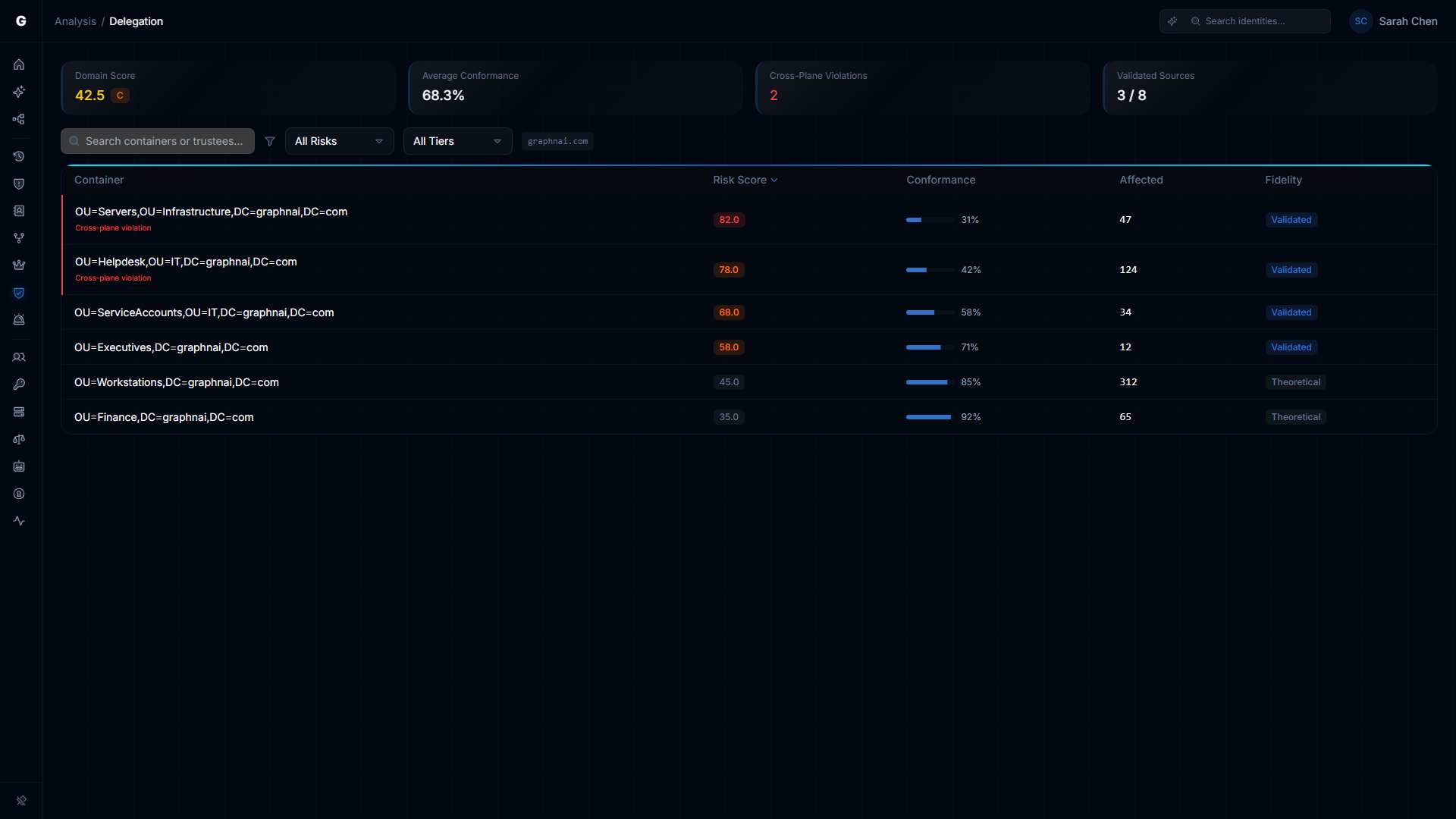
Summary Cards
Four cards at the top provide a domain-level overview:
| Card | Description |
|---|---|
| Domain Score | Composite delegation risk score (0–100) with letter grade (A/B/C/D/F). Lower is better. |
| Average Conformance | Mean best practice conformance percentage across all delegation sources. Higher is better. |
| Cross-Plane Violations | Count of delegations where a lower-tier trustee controls higher-tier objects. Red when > 0. |
| Validated Sources | How many delegation sources have been confirmed by telemetry (Tier 3) vs. only structural (Tier 1). |
Delegation Sources Table
The main table lists every container (OU or CN) where custom delegations were detected. Each row represents a delegation source.
Columns
| Column | Description |
|---|---|
| Container | OU or container name. Cross-plane violations show a red "Cross-plane violation" label beneath the name and a red left border on the row. |
| Risk Score | Composite score (0–100) with color-coded badge (green < 25, amber 25–49, orange 50–79, red 80+) |
| Conformance | Best practice conformance percentage with progress bar |
| Affected | Number of child objects affected by this delegation |
| Fidelity | Whether the delegation has been observed in use — "Validated" (Tier 3) or "Theoretical" (Tier 1) |
Sorting and Filtering
- Sort: Click any column header. Default sort: Risk Score descending (worst first).
- Search: Filter by container name or trustee display name.
- Risk Level filter: All / Critical / High / Medium / Low.
- Fidelity filter: All / Validated (Tier 3) / Theoretical (Tier 1).
The current domain is shown as a badge in the toolbar.
Detail Flyout
Click any row to open the detail flyout on the right side, showing:
Scoring Breakdown
Five horizontal progress bars showing the contribution of each factor to the composite score:
- Breadth — Number of affected objects
- Depth — OU hierarchy level (higher-level OUs score worse)
- Severity — Danger level of delegated rights
- Scoping Quality — Whether ACEs target specific object types
- Trustee Health — Staleness and group composition of trustees
If the delegation has a cross-plane violation, the flyout shows a note that the score was amplified due to the violation.
Best Practice Conformance
A list of conformance rules, each showing pass (green check) or fail (red X), with the rule ID, name, and detail. Rules are derived from Microsoft's published delegation best practices.
Trustees
The list of groups and users that hold delegated rights on this container. Each trustee shows:
- Type badge (User or Group)
- Stale badge (if the trustee account is inactive)
- Empty badge (if the trustee is a group with no members — meaning the delegation is effectively orphaned)
- Access plane (User Access, Management, or Control)
Click a trustee to navigate to it in the Graph Explorer.
Delegated Rights
Tags showing the specific AD permissions granted by this delegation. Dangerous permissions (GenericAll, WriteDacl, WriteOwner, AllExtendedRights, DCSync) are highlighted in red with a warning icon.
Cross-Plane Violation
If present, a red-bordered section showing the trustee's access plane versus the container's access plane, with an explanation of why this violates the Enterprise Access Model.
Affected Object Types
Breakdown of how many objects of each type (User, Computer, Group, etc.) fall under this delegation's scope.
Delegation Graph
An inline graph visualization showing the delegation relationships — the container node, the trustee nodes, and the delegated permission edges between them.
Understanding Cross-Plane Violations
The Enterprise Access Model (formerly "tiered admin model") defines three access planes:
| Plane | Description | Examples |
|---|---|---|
| Control (Plane 2) | Domain infrastructure | Domain Controllers, AdminSDHolder, Schema |
| Management (Plane 1) | Server and application management | Server OUs, application service accounts |
| User Access (Plane 0) | End-user accounts and workstations | User OUs, workstation OUs |
A cross-plane violation occurs when a trustee in a lower plane has delegated rights over objects in a higher plane. For example:
- A helpdesk group (Plane 0) with
ResetPasswordon a Server OU (Plane 1) - An application service account (Plane 1) with
WriteDaclon the Domain Controllers OU (Plane 2)
These violations create lateral movement paths that bypass tiered administration boundaries.
How Delegation Posture Connects to Other Features
- Risk Posture Dashboard: The Delegation Risk factor card shows the domain-level delegation health score. Click to drill through here.
- Identity Inventory: The Delegation Posture section in the inventory shows per-identity delegation exposure.
- Graph Explorer: Click "View in Graph" in the detail flyout or click any trustee to navigate to the access graph.
Troubleshooting
Empty state: "No custom delegations detected"
- Cause: The Identity Bridge hasn't collected ACL data, or the domain has no custom delegations
- Fix: Ensure the bridge is syncing with ACL collection enabled (this is the default). Trigger a full sync.
Conformance scores seem wrong
- Cause: The analysis evaluates against a fixed set of Microsoft best practice rules. Some organizations intentionally deviate from these practices.
- Note: Non-conformant delegations aren't necessarily security risks — context matters. Use the detail flyout to review each rule's pass/fail reason.
Cross-plane violations showing for legitimate admin delegations
- Cause: The Enterprise Access Model plane assignment is based on OU hierarchy heuristics. Some environments have non-standard OU structures.
- Note: Review the trustee and container planes in the detail flyout. If the assignment is incorrect for your environment, the delegation may still be appropriate.